
Tool Permissions — Stay in Control of What Kai Can Do
Kai now lets you decide exactly which tools require your approval before running, giving you full control over how Kai interacts with your project resources.
Kai can do a lot — from reading your project’s tables and configurations to creating transformations and running jobs. With tool permissions, you now have granular control over which of those actions Kai can take on its own and which ones need your sign-off first.
How It Works
Kai’s tools are divided into two categories:
- Read-only tools retrieve information without making changes — like listing tables, reading configurations, or searching your project. These are permitted by default since they don’t modify anything.
- Write tools can create or modify resources in your project — like creating configurations, running jobs, or deploying data apps. These require your explicit approval before Kai can execute them.
When Kai wants to use a write tool, it will pause and show you exactly what it plans to do, including a preview of any configuration changes. You can then approve or decline the action before anything happens.
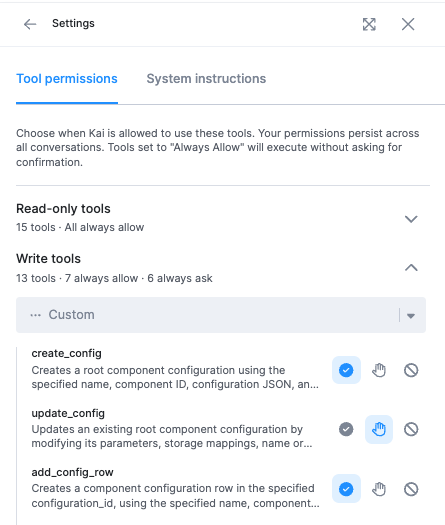
Three Permission Levels
You can assign one of three permission levels to each tool:
- Always allow: The tool runs automatically without asking for confirmation.
- Always ask: Kai must request your approval each time before using the tool.
- Block: The tool is completely disabled and Kai cannot use it at all.
Setting Your Preferences
There are two ways to configure tool permissions:
- Settings panel: Go to the tool permissions settings, find the tool you want to configure, and select your preferred permission level.
- Approval dialog: When Kai requests permission to use a tool, you can click “Always allow” to auto-approve that tool for all future uses.
To learn more, visit our documentation.