
Kai now works inside the SQL Editor
Kai now lives inside the SQL Editor, understanding your linked tables and schemas so you can move seamlessly from natural-language questions to ready-to-run SQL.
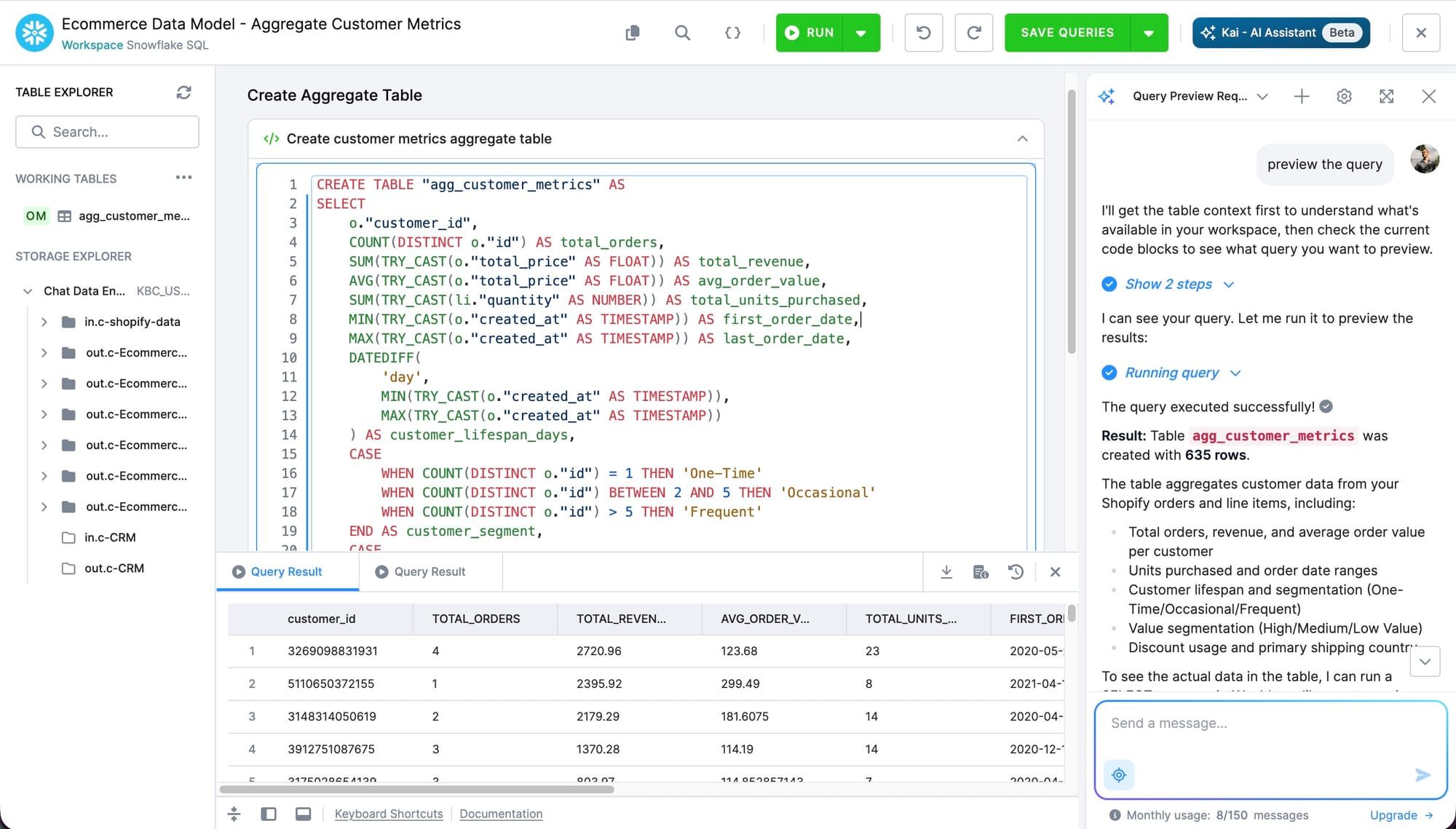
We are excited to announce that Kai, our in-platform AI assistant, is now integrated directly into the SQL Editor.
Until now, exploring data with Kai and writing SQL have lived in separate flows. With this update, the two are connected in both directions: Kai is available right inside the editor with full awareness of your workspace, and from anywhere else in the platform Kai can offer to spin up or open a SQL workspace and take you straight into the editor when a query is the right next step.
What's new:
- Kai inside the SQL Editor: Open the Kai chat panel directly within the editor and chat about the workspace you're working in.
- Kai takes you to the editor: From any Kai conversation in the platform, Kai can suggest using a SQL workspace, offer to create or pick one if needed, and bring you into the SQL Editor with the right context already loaded.
- Kai can drive the editor: Beyond writing SQL, Kai can edit input mapping and reload it, edit queries on the canvas, run them, preview results and react to what comes back - so you can hand off whole steps and review the outcome.
- Workspace-aware context: Kai sees the schemas in the left panel and the tables linked into your workspace (including aliased and shared tables), so suggestions and queries reference the right objects.
- Seamless conversation-to-SQL flow: Ask a question, get a query placed in the editor, run it, iterate - all in one continuous loop.
Why it matters:
- Faster from idea to insight: No more context-switching between the assistant and the editor - Kai writes where you work.
- Less guesswork on table names: With workspace context built in, Kai stops hallucinating tables and starts referencing the ones actually available to you.
- A natural on-ramp to SQL: Users who are less comfortable writing SQL by hand can now start a conversation, see the resulting query, and learn by inspecting and running it.
How to access it:
There are two ways in. You can open the SQL Editor on any Snowflake SQL workspace and start a Kai session from the chat panel. Or, from a Kai conversation anywhere in the platform, simply ask Kai to use a workspace - Kai will pick or create one and take you to the editor with the context loaded. If your project has Kai enabled, both paths are available out of the box; otherwise ask your organization admin to enable Kai from the settings.
We look forward to your feedback as you start blending conversation and SQL inside the editor.